
Astronomical Observatory






No sign-up needed. No credit card required. Download now and use for free.
Image in 1920x1080 format works perfectly with MS Teams calls.
More Teams Backgrounds You Might Like







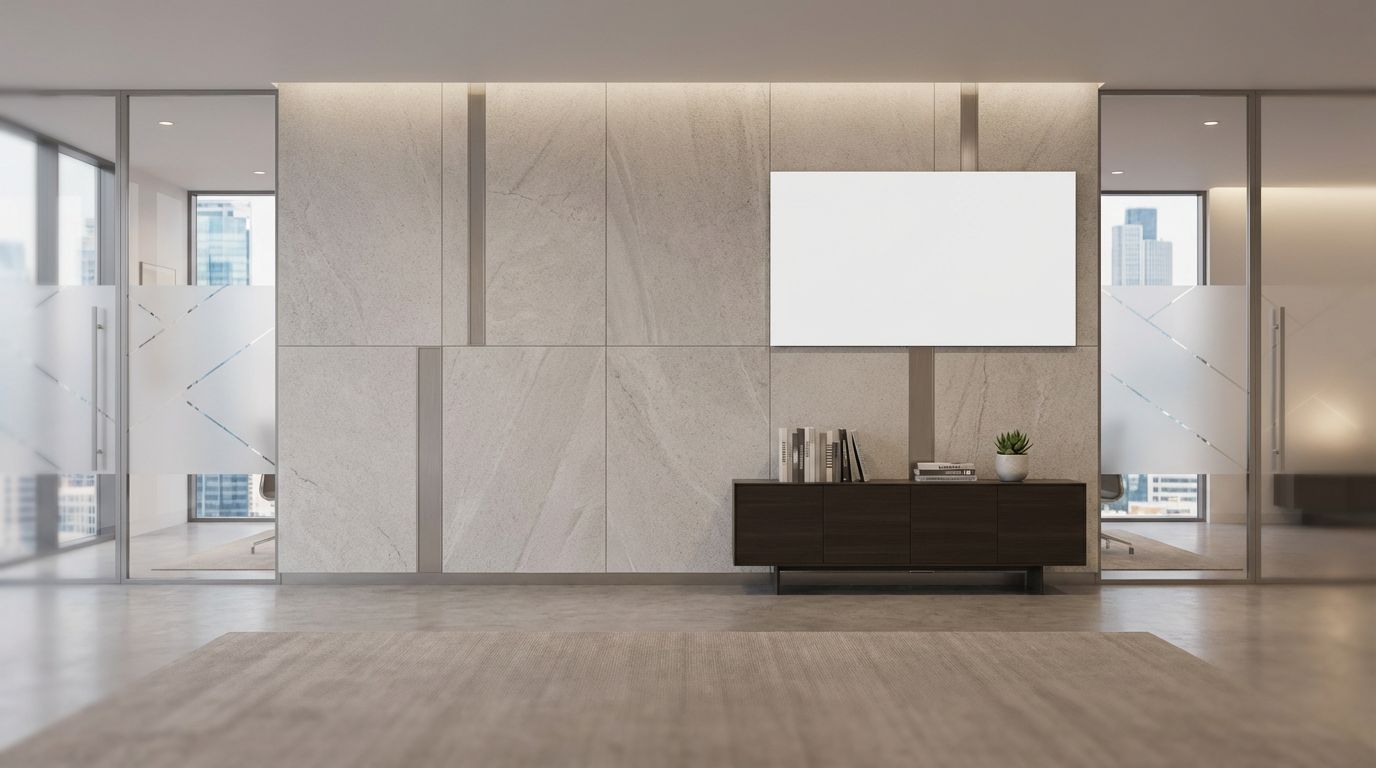





How to Set This Background in Microsoft Teams
1Before Joining a Meeting
- Download the background image using the button above
- Open Microsoft Teams and go to the Calendar tab
- Click on a meeting to join it
- On the pre-join screen, click Background filters (person icon)
- Click + Add new at the top right
- Select the downloaded background image from your device
- Click on the uploaded image to select it, then click Apply
- Join your meeting with your new background
2During a Meeting
- Click the More actions button (three dots) in the meeting toolbar
- Select Video effects or Apply background effects
- Click + Add new to upload your downloaded background
- Select the background and it will apply immediately
✓Good News: This Background is Ready to Use
All backgrounds on this site are already optimized for Microsoft Teams with the recommended 1920 x 1080 pixels resolution in JPG format. Just download and upload - no resizing needed.
Pro tip: Your selected background will persist across all your future meetings until you change it again. You can also blur your background instead of using a custom image by selecting the blur option in the background effects menu.
Upgrade Your Video Calls
Make a professional impression on every call with the perfect background
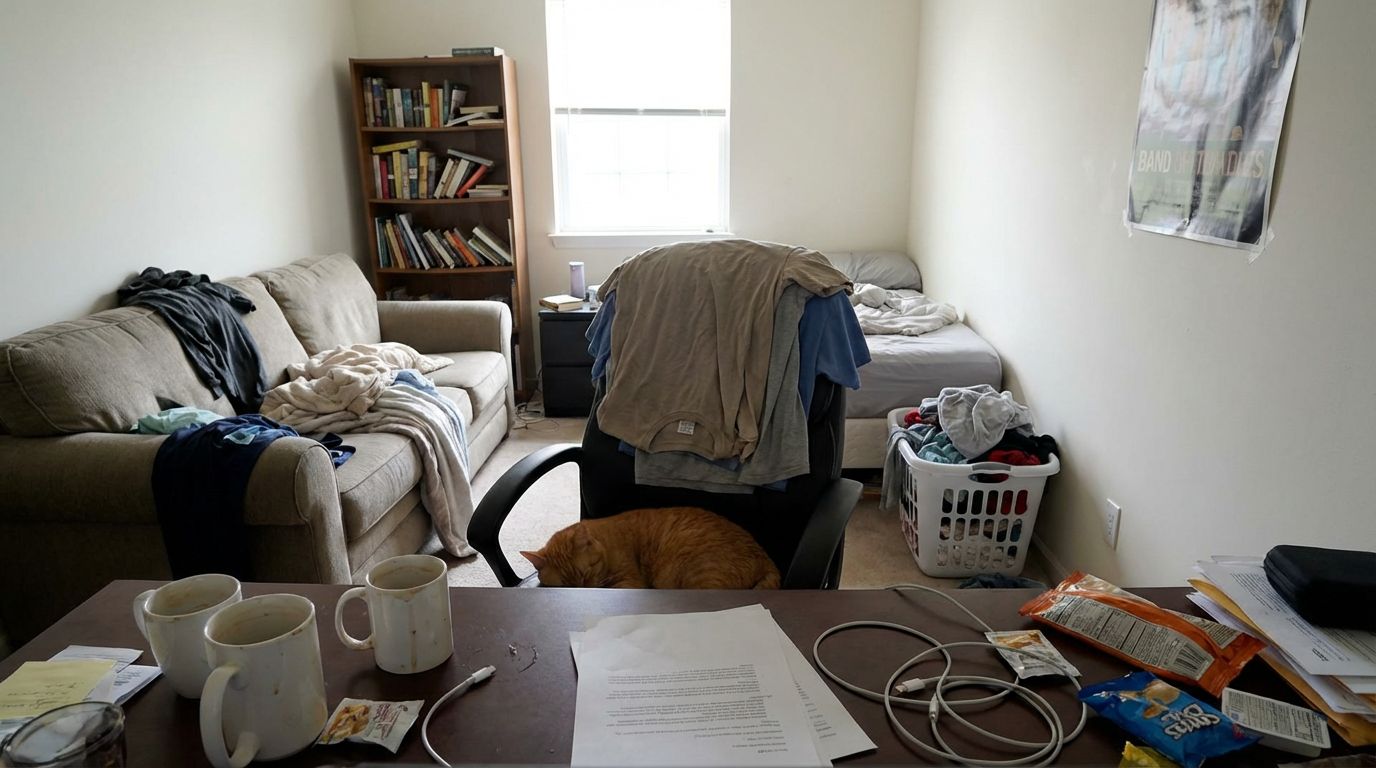




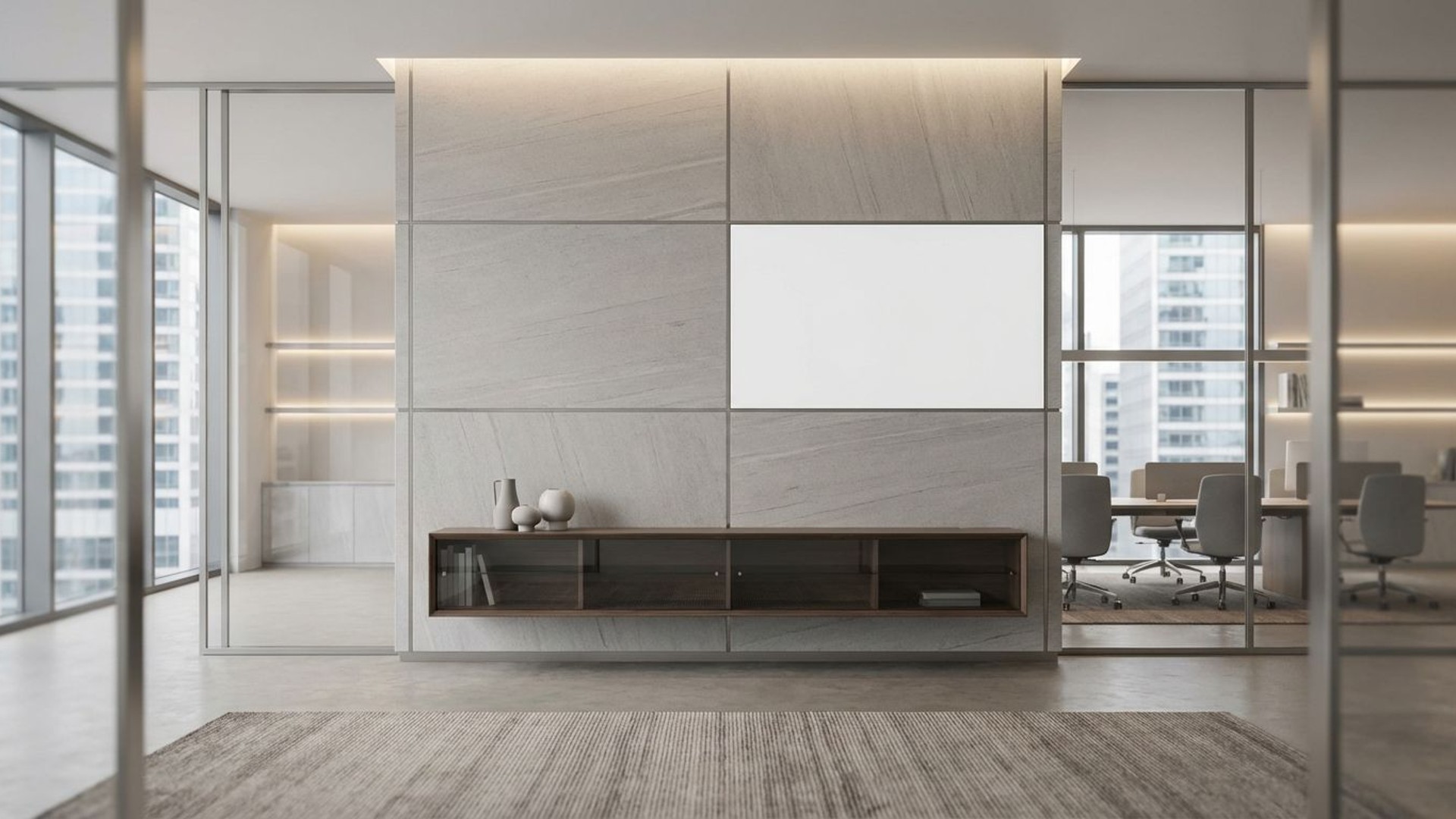

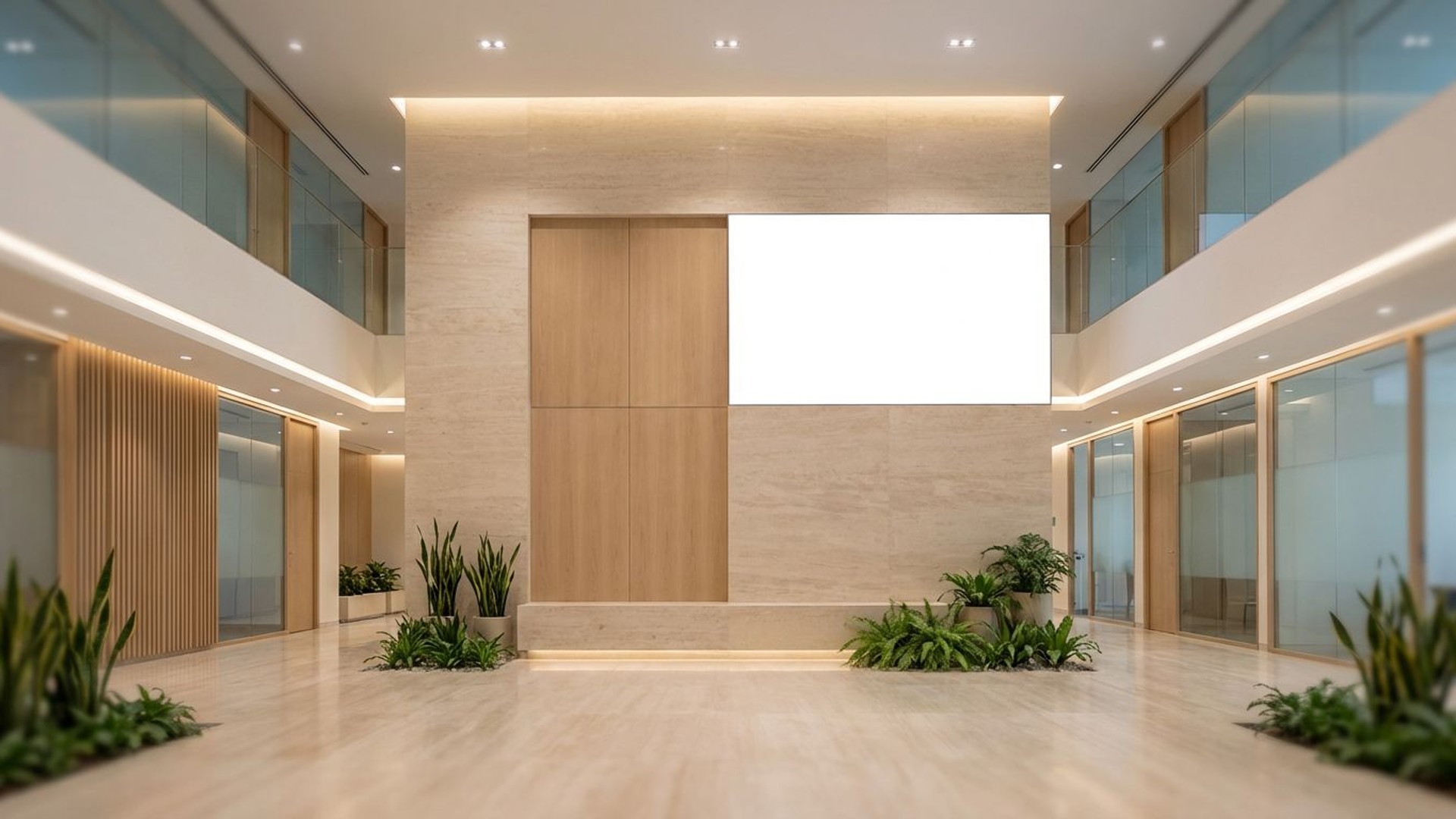
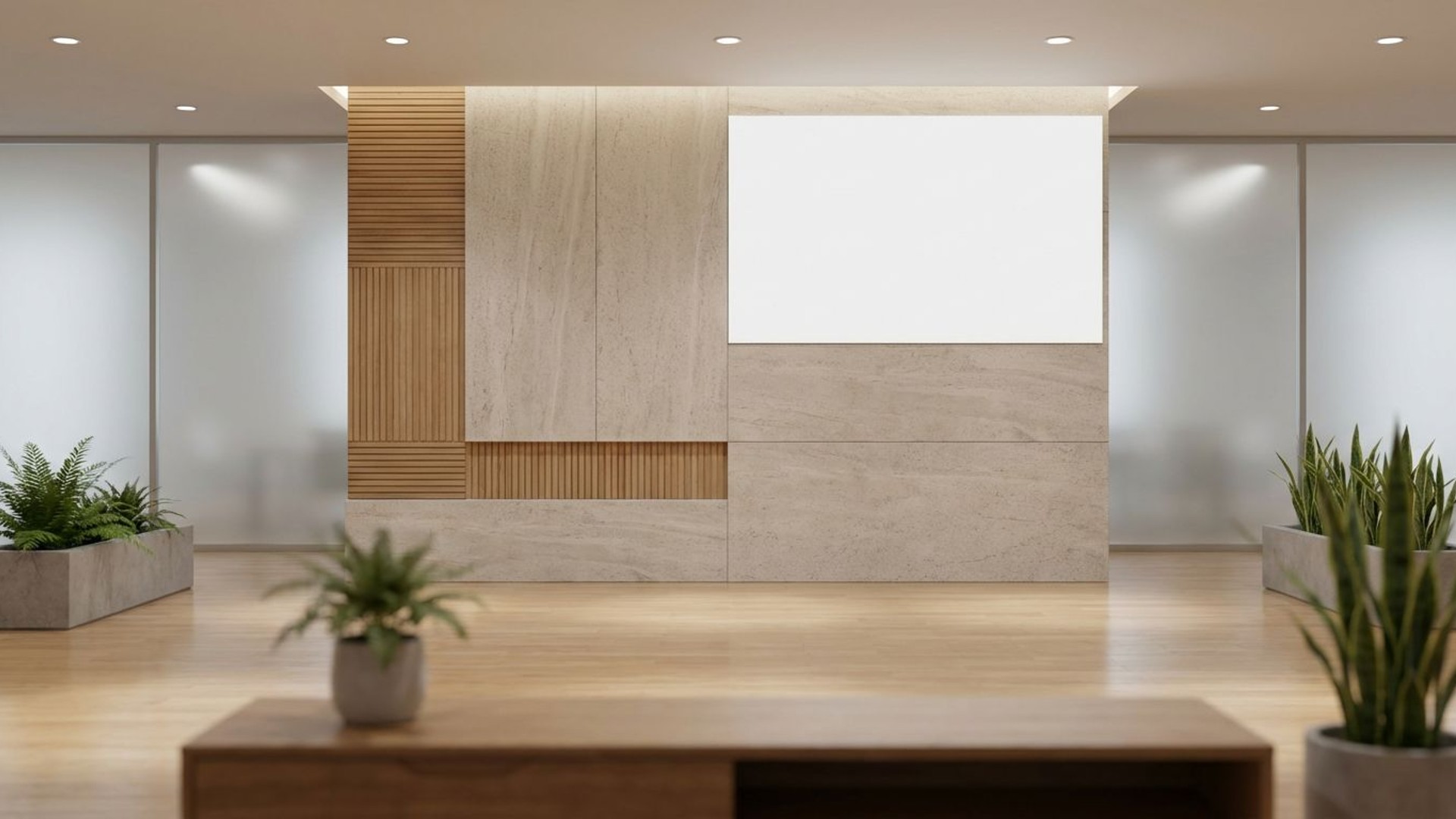
Your actual background might distract your colleagues...
Frequently Asked Questions
Are these Microsoft Teams backgrounds really free?
Yes, all backgrounds on Backgrounds For Teams are completely free to download and use. No signup, credit card, or subscription required. Simply click the download button and use the image in Microsoft Teams.
What is the recommended image size for Teams backgrounds?
Microsoft Teams recommends background images with a resolution of 1920 x 1080 pixels (16:9 aspect ratio). All backgrounds on this site are already optimized to this exact specification, so they're ready to use without any resizing.
Where are custom Teams backgrounds stored on my computer?
On Windows, custom backgrounds are stored in: %APPDATA%\Microsoft\Teams\Backgrounds\Uploads. On Mac, they're located in: ~/Library/Application Support/Microsoft/Teams/Backgrounds/Uploads. Teams automatically copies uploaded images to these folders.
Can I use these backgrounds on Teams mobile app?
Yes, Microsoft Teams mobile app (iOS and Android) supports custom backgrounds. Open Teams, join a meeting, tap the three dots menu, select 'Background effects', then tap '+ Add new' to upload your downloaded background image.
Why isn't my custom background showing in Teams?
Make sure your image is in JPG or PNG format and at least 1920 x 1080 pixels. Also verify that background effects are enabled by your IT administrator. Try restarting Teams if the background doesn't appear after uploading. All images on this site meet Teams' requirements.
Trusted by Businesses Worldwide
See how companies use our backgrounds to look professional on every call





"These backgrounds transformed our team's video presence. Our clients love the professional look, and it's been perfect for our business."
— Marketing Team Lead, Tech Startup